Managing and Running Scripts
|
|
NOTE: Scripting requires a separate KACE Cloud Secure license for devices managed with a Modern subscription, while it is included for devices managed with a Companion Edition subscription. |

KACE Cloud Scripting enables administrators to automate device actions by deploying and running custom scripts either through policies or directly on devices. This section explains how to manage scripts, configure them for execution, define triggers, and monitor their progress using the user interface.
Executing scripts on remote devices using KACE Cloud offers numerous benefits, especially for IT administrators and organizations managing large fleets of devices.
Scripts are stored in the KACE Cloud Library, providing a centralized platform to manage and execute scripts across managed Windows and macOS devices. This ensures consistent management practices and uniformity across the organization.
Scripting can be used to automate various administrative tasks, such as:
- Software Installation: Deploy custom software packages across multiple devices.
- Configuration Management: Apply system settings and enforce policies automatically.
- Task Automation: Run maintenance scripts, clear logs, or update applications.
When a script runs on a device, the system performs the following steps:
- Sync the latest script and its required files.
- Execute the script with the given settings.
- Capture logs and results for tracking.
Supported Scripts on Platforms
The following are the supported scripting languages:
- Windows: PowerShell, Windows Batch
- macOS: POSIX Shell, PowerShell
Viewing Scripting Page
On the Scripting Library page, an admin can add new scripts, view or sort the list of existing Scripts related to all the associated devices, filter the scripts, search a script, publish/unpublish a script, and open an individual script to view the script details. An admin can also view list of jobs associated with all the devices, filter the jobs, open individual job to view the details.
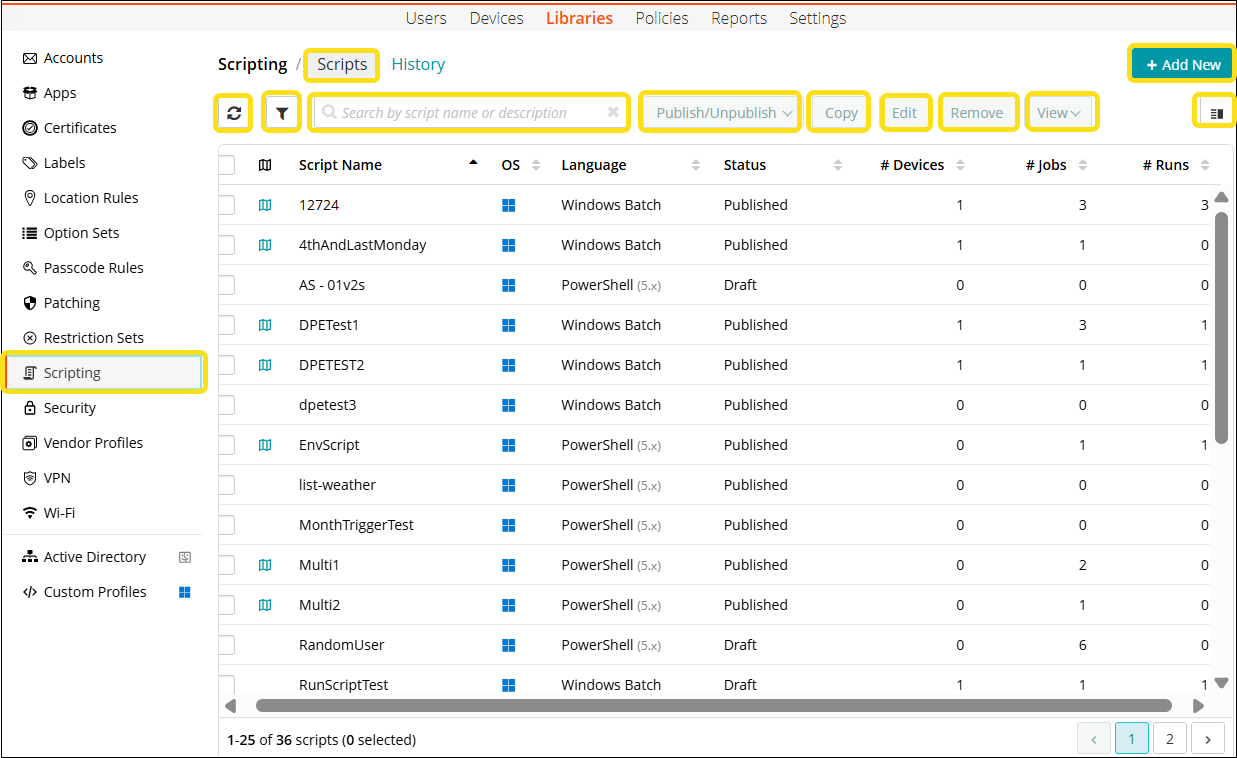
On the Individual Scripts page, an admin can view the script details, edit or remove individual script, view the devices and users for the selected script, publish/unpublish a script.
When switched to the History tab, an admin can view the job details, stop a pending or running job, rerun a job, remove a failed job, view the devices and users for the selected job,
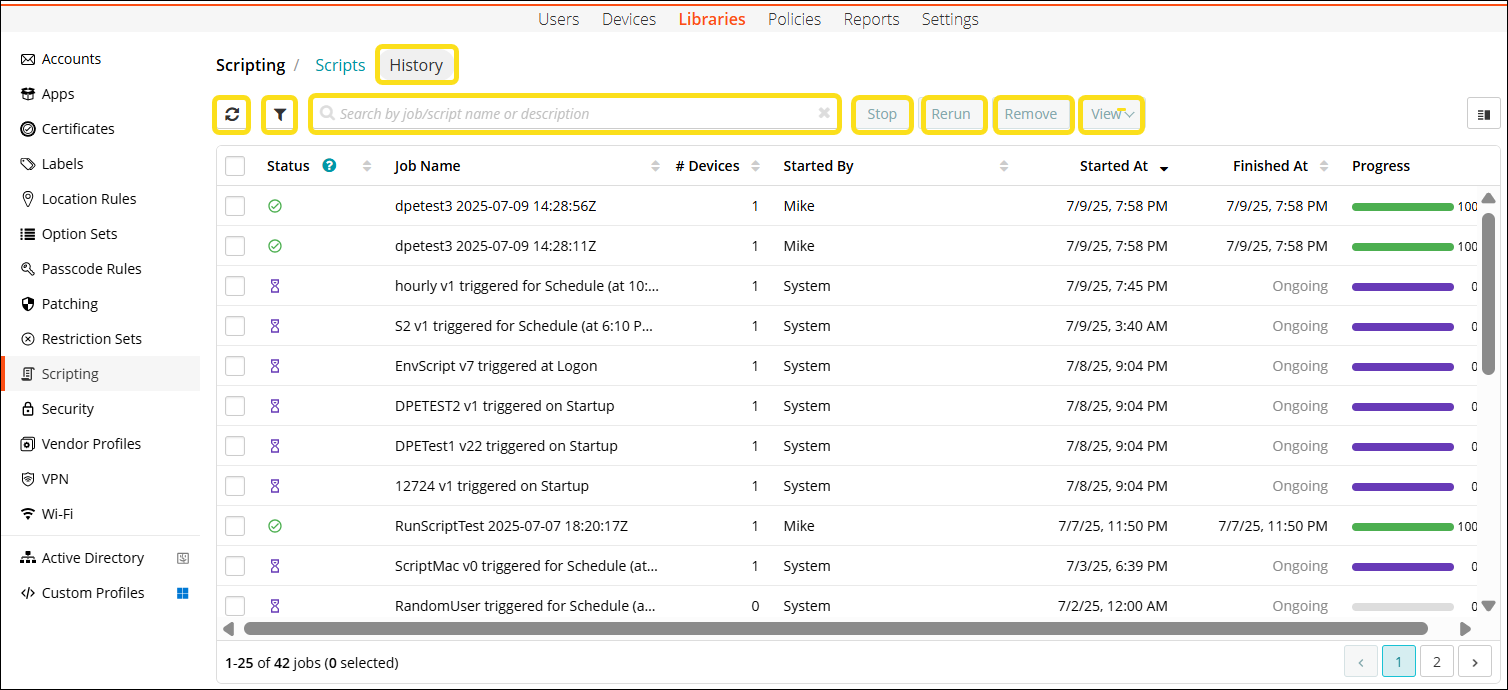
If a script is in Draft status, you can publish it. You can run the script in Draft status on a single or multiple device(s) on demand.
If a script is in Published status, you can unpublish it. Once you unpublish a script, the status of the script changes to Draft.
You can view the users or devices associated with the selected script. The View option gets enabled when a script has run on a device.